Activating with License Key
If you’ve been provisioned a license, you should have received a license key via email. If you have not received a key and already checked your spam folder, please reach out to your license administrator.Step 1: Click on the Settings or Key icon in Bruno
Both icons are located at the bottom left corner of the Bruno window. The Key icon will take you directly to theLicense section. If you choose to use the Settings icon, simply select License from the settings menu.
Step 2: Enter License Details
Enter your license key and associated email address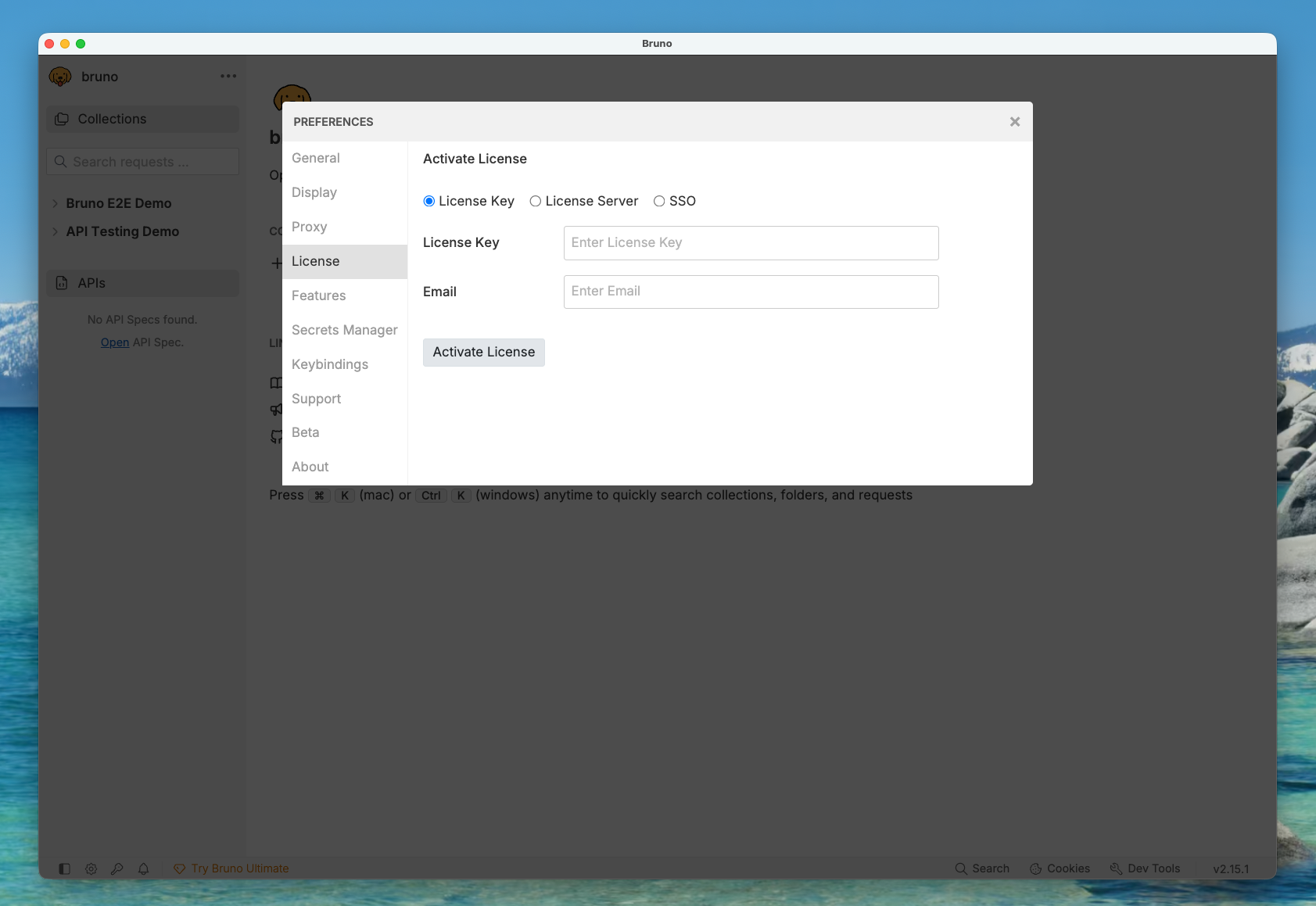
If your company uses a self-hosted licensing server, select
License Server and enter the details provided to you by your License Administrator.Step 3: License Activated
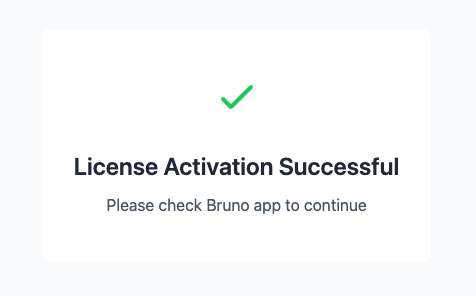
Once the license is activated, you will see a success message.Activating with SSO
SSO license activation is available for Ultimate Edition customers. Please see the SAML SSO Overview for more information.
Step 1: Click on the Settings or Key icon in Bruno
Both icons are located at the bottom left corner of the Bruno window. The Key icon will take you directly to theLicense section. If you choose to use the Settings icon, simply select License from the settings menu.
Step 2: Activate with SSO
If your company has configured SSO for Bruno, selectSSO and click Activate License.
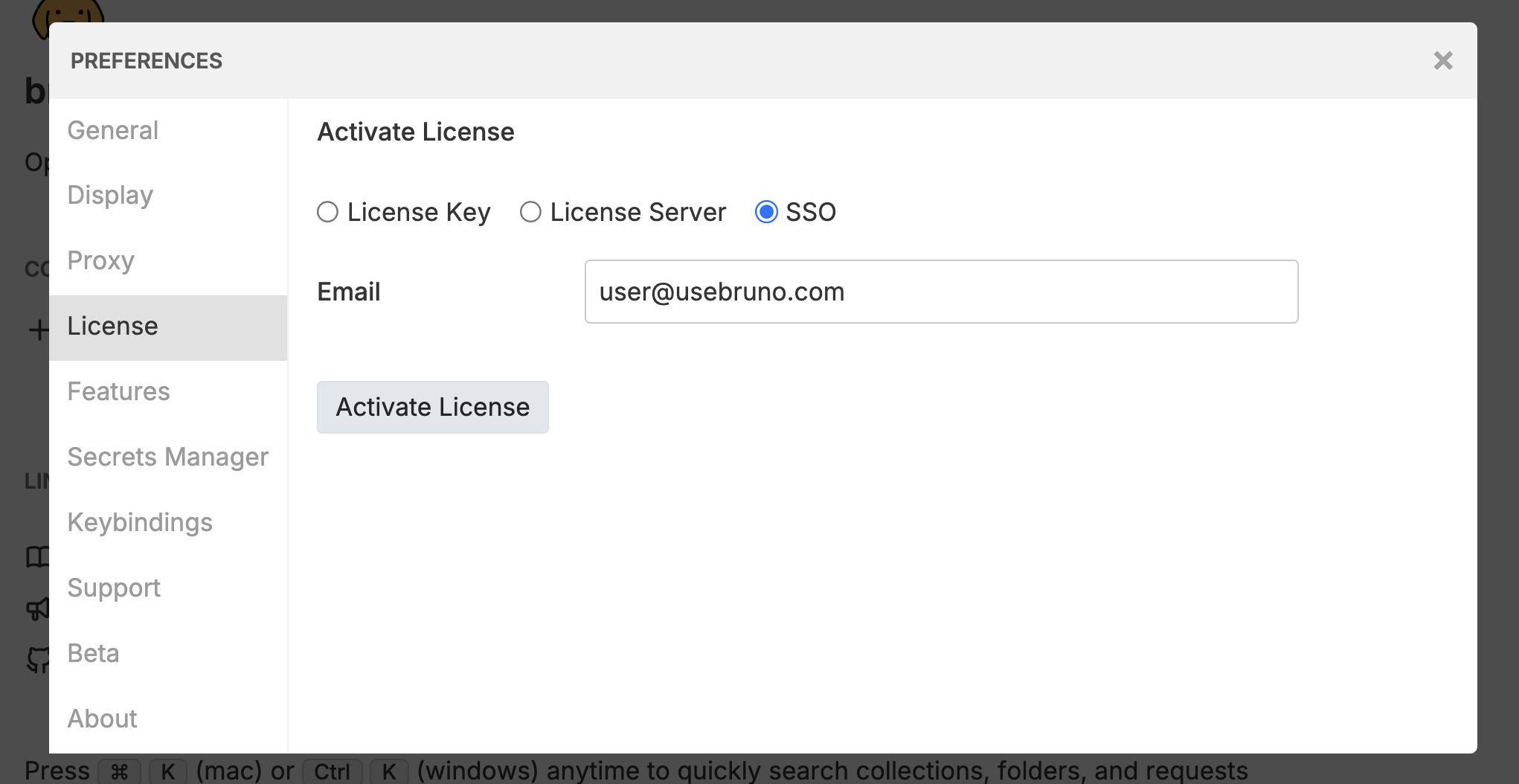
Your email needs to be part of the SSO configuration in order to activate your license, with the
User Role mapped. See Role Mapping for details.Step 3: SSO Login
You will be redirected to your corporate SSO login page. Enter your credentials to login. A successful login message will be displayed.