

Create Request
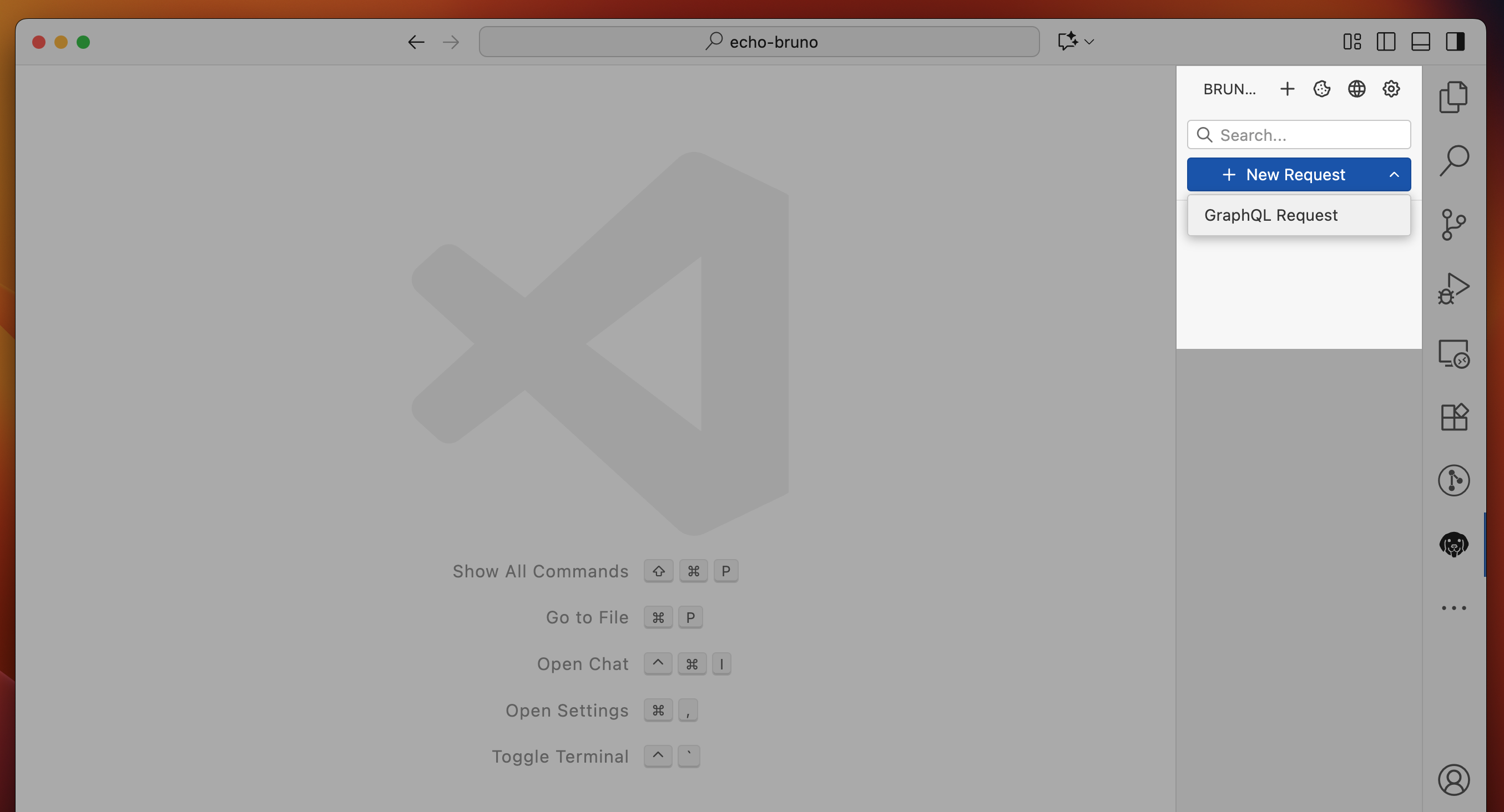
You can create requests by navigating to the Bruno extension:- Click on New Request
- Provide request
nameandURL
Create Environment
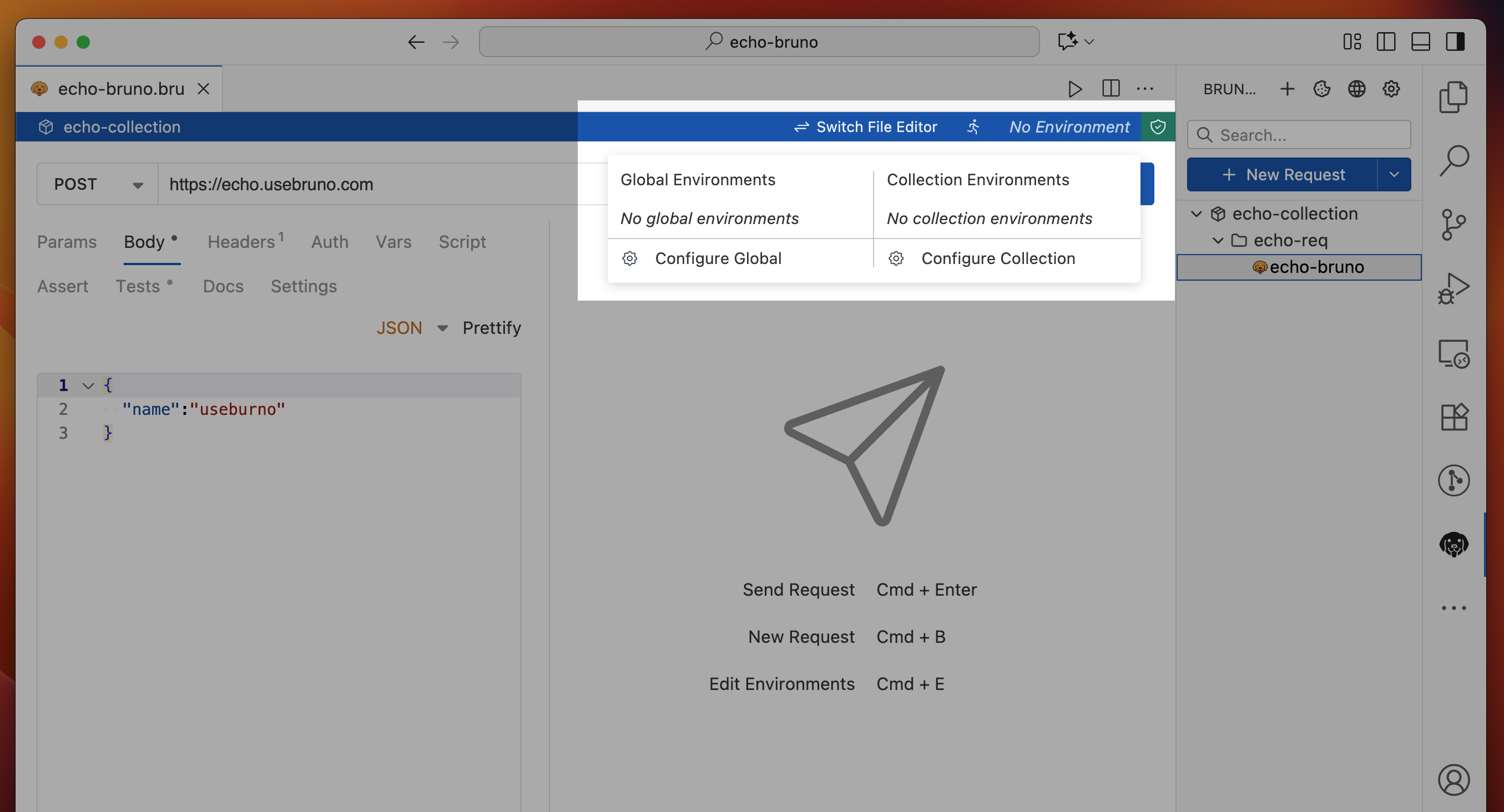
To create a new environment:- Click on No Environment
- Go to Configure (Global or Collection) as per your preference
- Enter name for the environment and create values
- Set up variables for different environments (dev, staging, production)
Global environment variables created within Bruno desktop app are not accessible in the extension due to security reasons.
Console
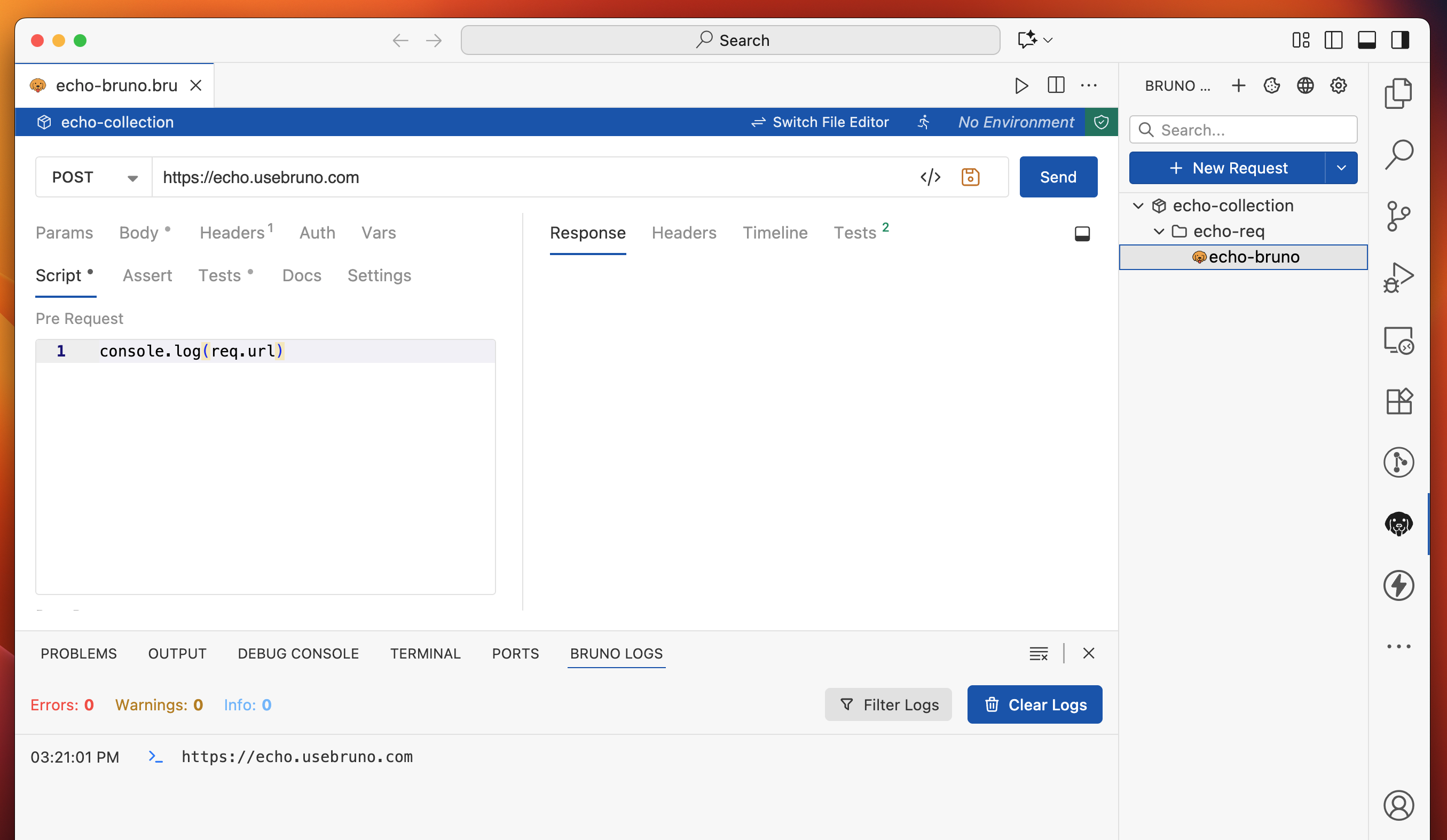
To test, debug, and troubleshoot script issues, the Bruno console is available in the terminal as the Bruno Console tab. Features:- View console output from your scripts
- Debug pre-request and test scripts
- Monitor variable values and execution flow
Configurations
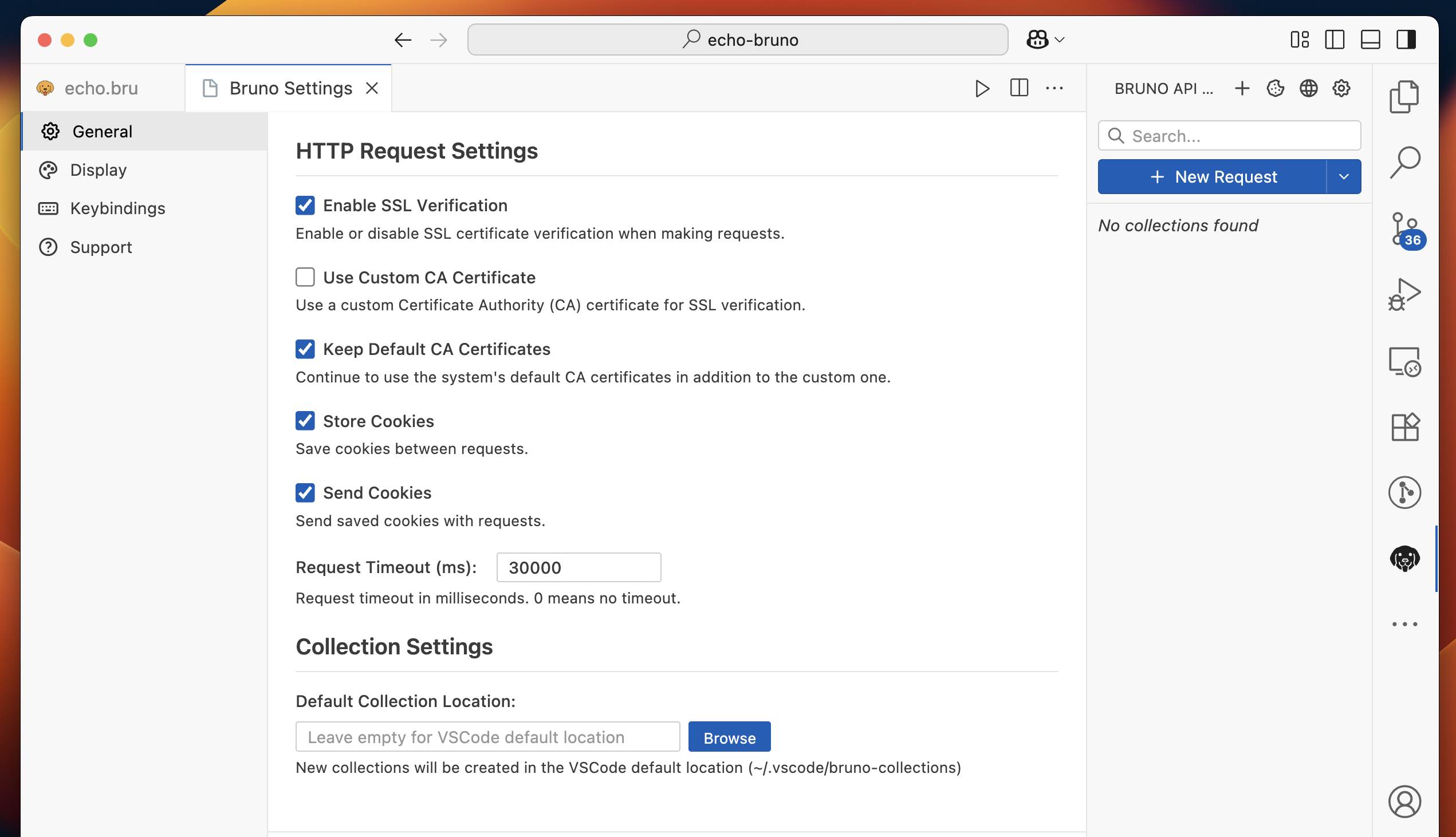
To add configurations such as SSL, CA certificates, Cookies, and more, click on the Gear icon available on the home screen of the extension. Available Settings:- SSL/TLS: Configure client certificates and CA certificates
- Cookies: Manage cookie policies
- Request Timeout: Configure default timeout values
- Response Formatting: Choose how responses are displayed
JavaScript Sandbox
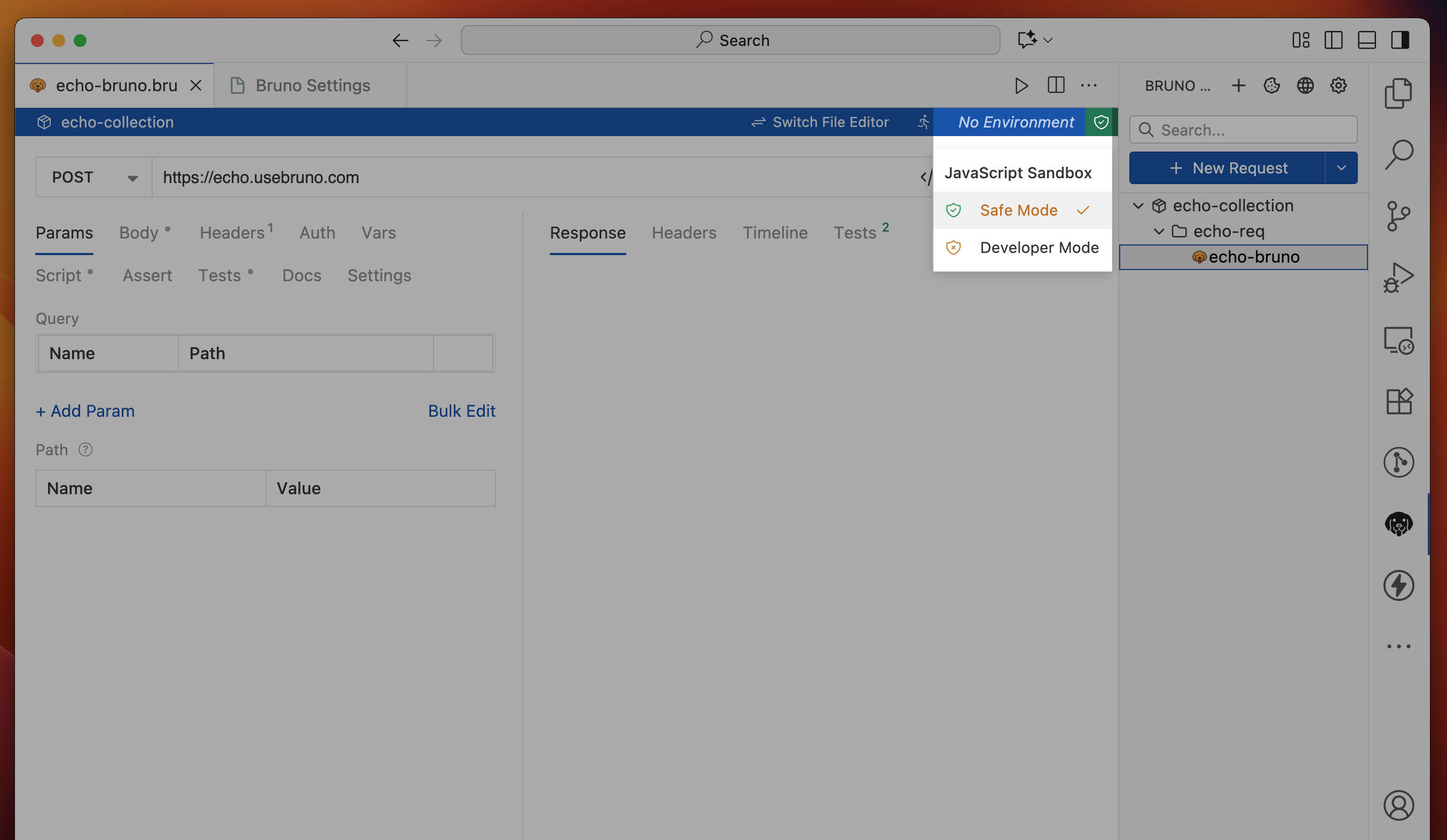
To switch between safe and developer mode to use JavaScript libraries and APIs features, navigate to the sandbox icon next to environments. Sandbox Modes:- Safe Mode: Restricted environment with limited API access for security
- Developer Mode: Full access to Node.js APIs and external libraries
Defaults
- File Mode: Default in explorer view, UI mode for extension
- Proxy Configuration: If you have proxy configuration set up in the editor, Bruno will pick up the values directly
- Cookie Management: Manage cookies separately from the cookies setting available in the extension home screen
Future Development
- gRPC Support: Currently in development (available in Bruno as beta feature)
- OAuth2 Authentication: Not yet supported in the extension