

Collection Export
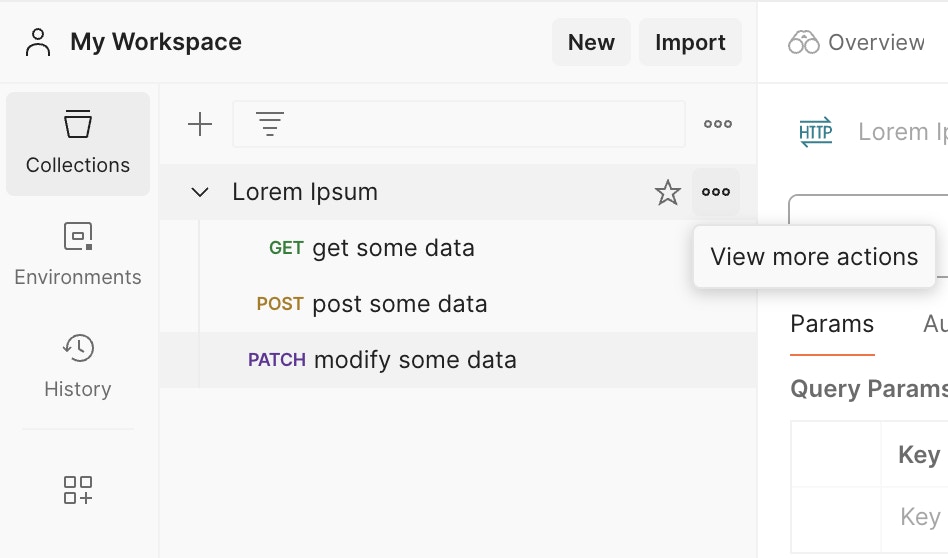
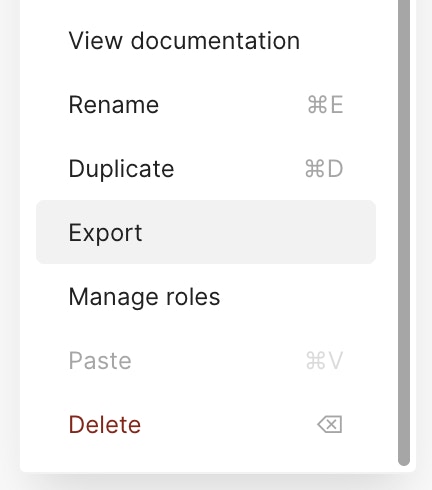
Open Postman and select the collection you want to migrate. Click on the··· followed by View more actions to open the dropdown menu and scroll down until you find Export, then click on it.
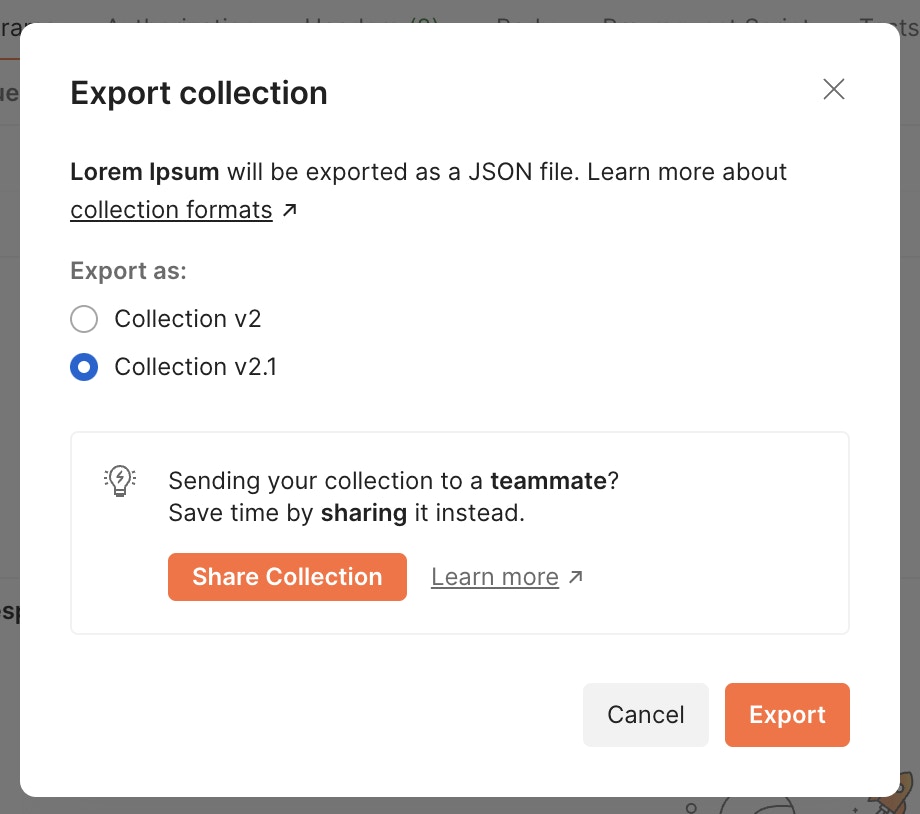
Collection v2 or Collection v2.1 format and click on the Export button.
Export Data Dump
Bulk Import from Postman is included in Bruno Ultimate Edition
-
Select the settings icon in the header, then select
Settings. -
Select the Data tab, then select
Request Data Export. -
Select
Export Data, then select the data types you want to export. You can export collections, environments, or both. -
Select
Request Data Export.
-
Open the import menu and select
Postman Data Export - Select the zip file where the export was saved
- You will now see a list of all collections available for import. By default, all collections will be selected. You can chose to omit any from the import that you’d like.
-
Designate a location for the collections and press
import
Although we have a translator for Postman scripts, it’s always good practice to review the collections after import, especially if you are using deprecated Postman syntax in your scripts.
Environment Import and Export
Environments in API clients are sets of variables that allow you to run requests against different server configurations (development, staging, production) without changing your request URLs.Exporting Environment from Postman
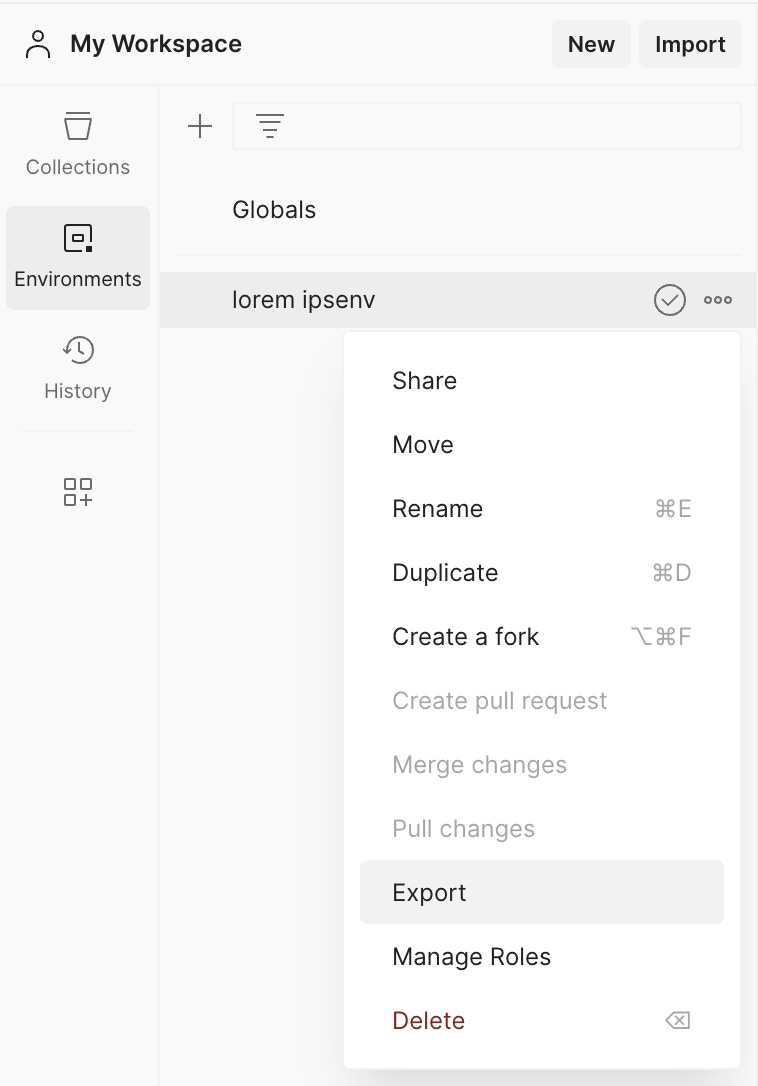
- Open Postman and locate the Environments section in the sidebar
- Find the environment you want to export
- Click on the three dots (…) next to the environment name
- Select Export from the dropdown menu
- Choose a location to save the JSON file and click Save
Importing Environment into Bruno
Importing Your First Environment
- Open Bruno
- Click on the Environments icon in the top-right corner
- Click on Configure environments
- You’ll see options to Create environment and Import environment
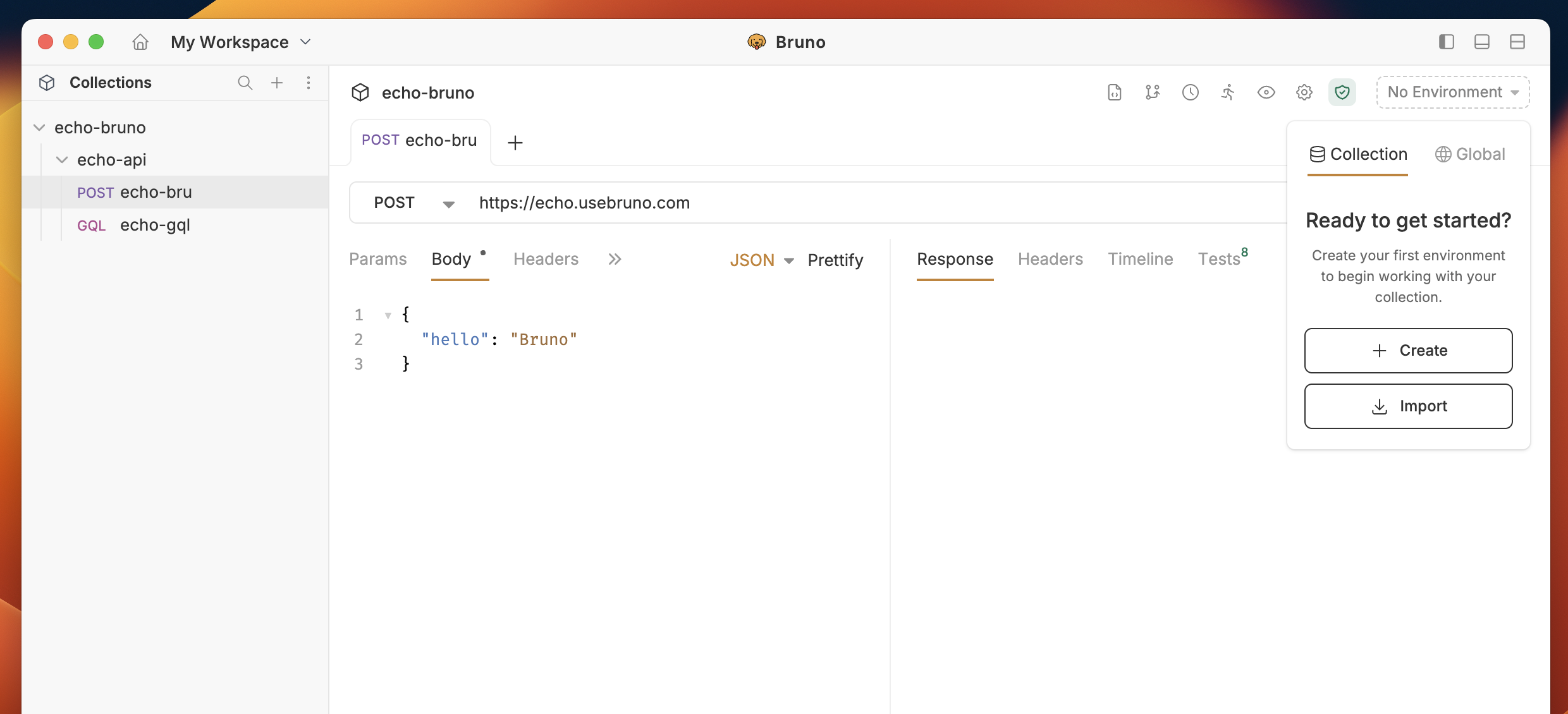
- Click on Import environment
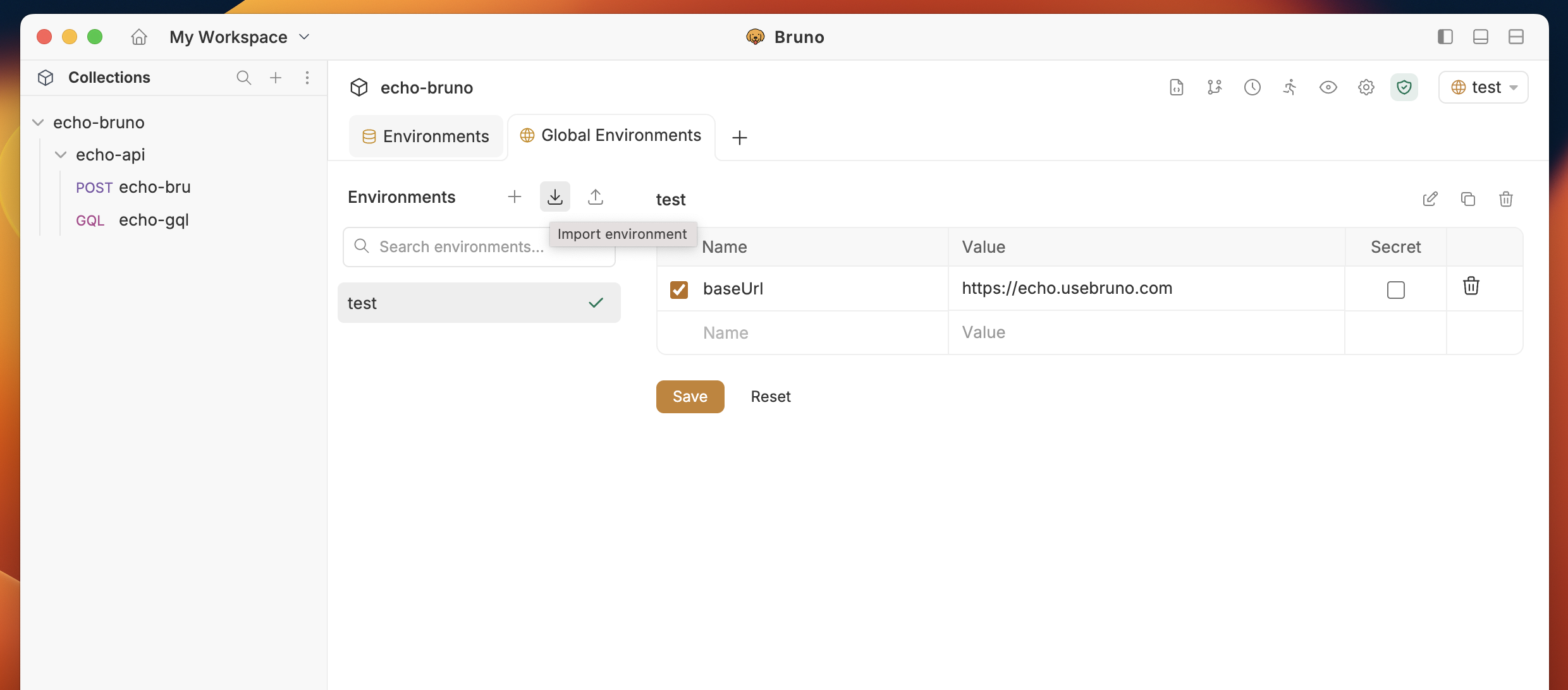
- Select the Postman environment JSON file you exported
- The environment will be imported with all its variables
Adding to Existing Environments
- Open Bruno
- Click on the Environments icon in the top-right corner
- Click on Configure environments
- Look for the Import button at the left sidebar
- Click on Import environment
- Select the Postman environment JSON file you exported
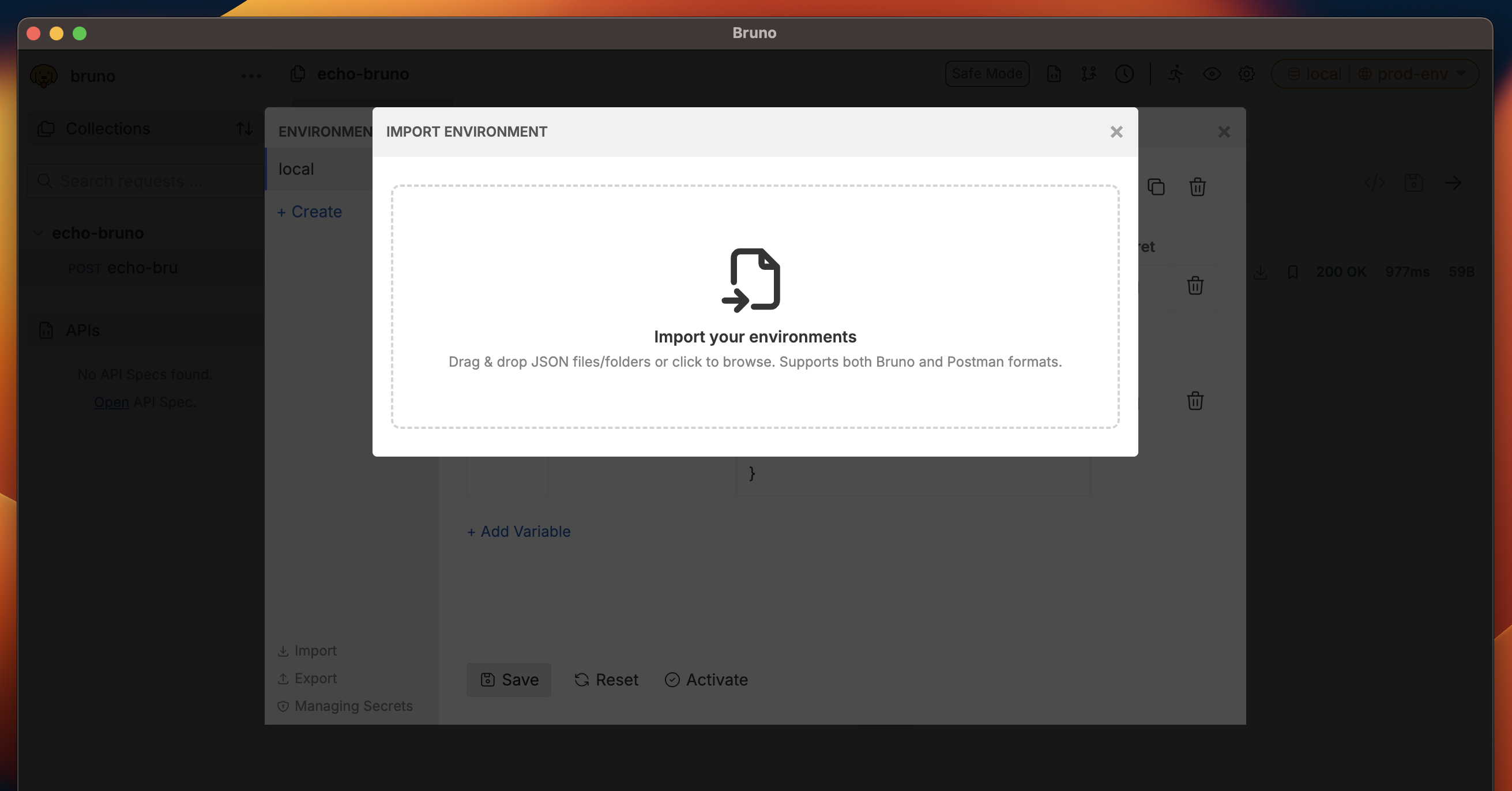
- The environment will be added to your existing environments
Note - Bruno environment names and variables must only contain alphanumeric characters, ”-”, ”_”, ”.” and cannot start with a digit. Non-conforming characters (such as ”/”) will be converted to ”-”.