

Prerequisites
- Azure CLI Installation: Ensure Azure CLI is installed on your system
- Azure CLI Authentication: Log in to Azure CLI using
az login - Key Vault Access: Ensure your Azure account has access to the target Key Vault
Setup Instructions
Step 1: Install and Configure Azure CLI
- Install Azure CLI from Microsoft’s official website
- Open terminal/command prompt and run:
- Follow the browser-based authentication process
Step 2: Configure Secrets
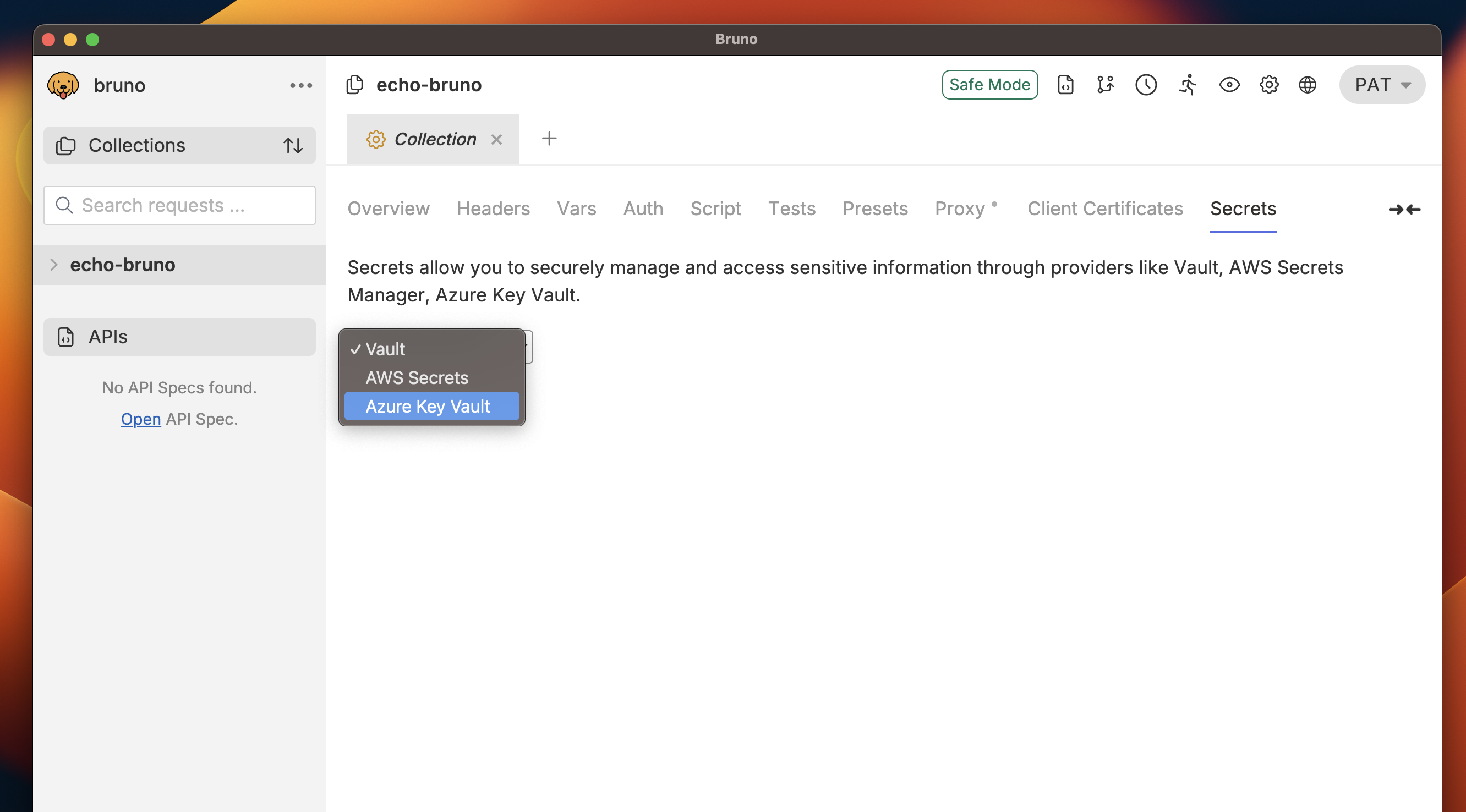
- Navigate to the Secrets tab in your collection
- Click on Select Provider and select Azure Key Vault from dropdown.
- In the EDIT PROVIDER dialog:
- Click + Add Secret
- Enter the Name for your secret
- Enter the Vault Name (your Azure Key Vault name)
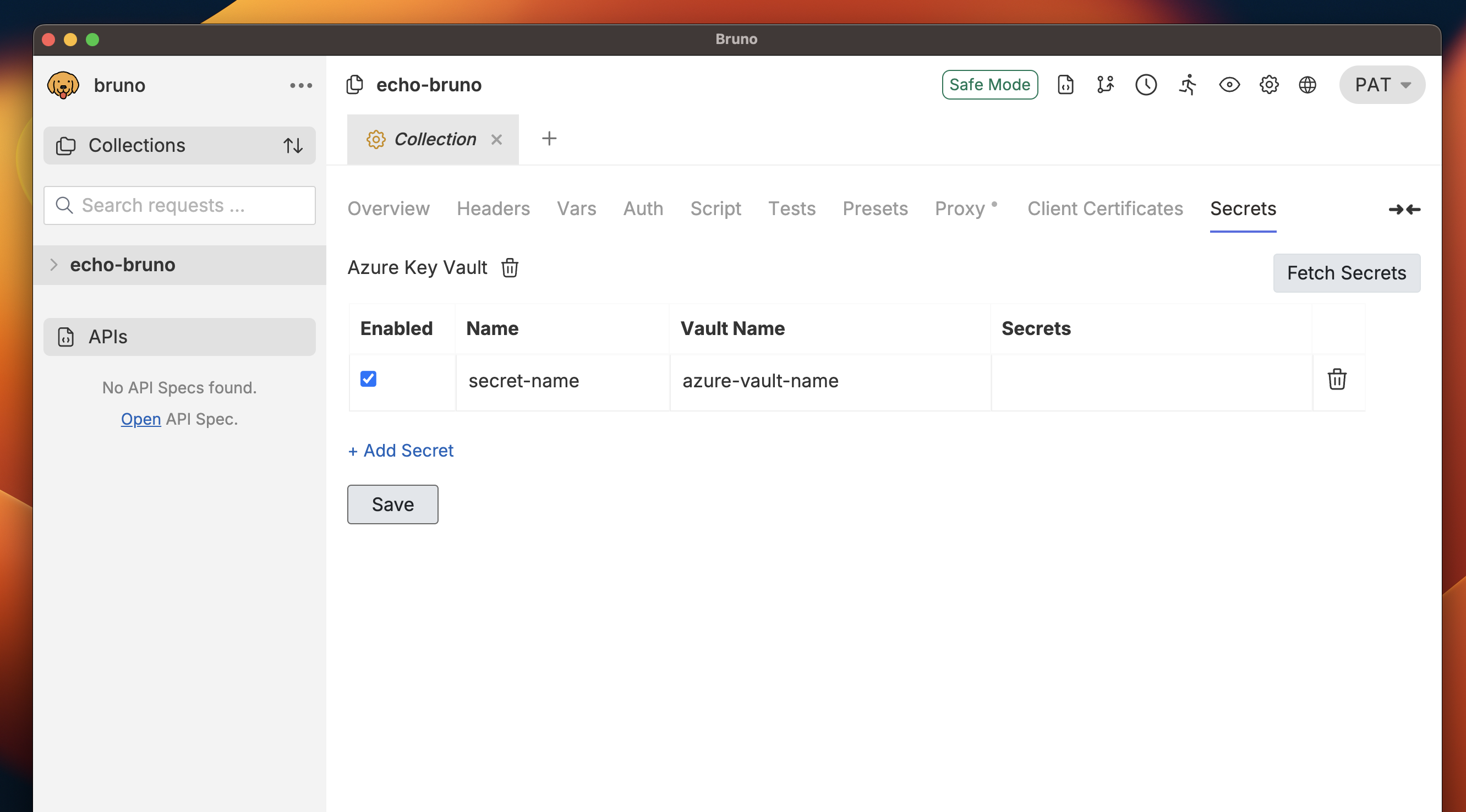
- Click on Save button.
Step 3: Fetch Secrets
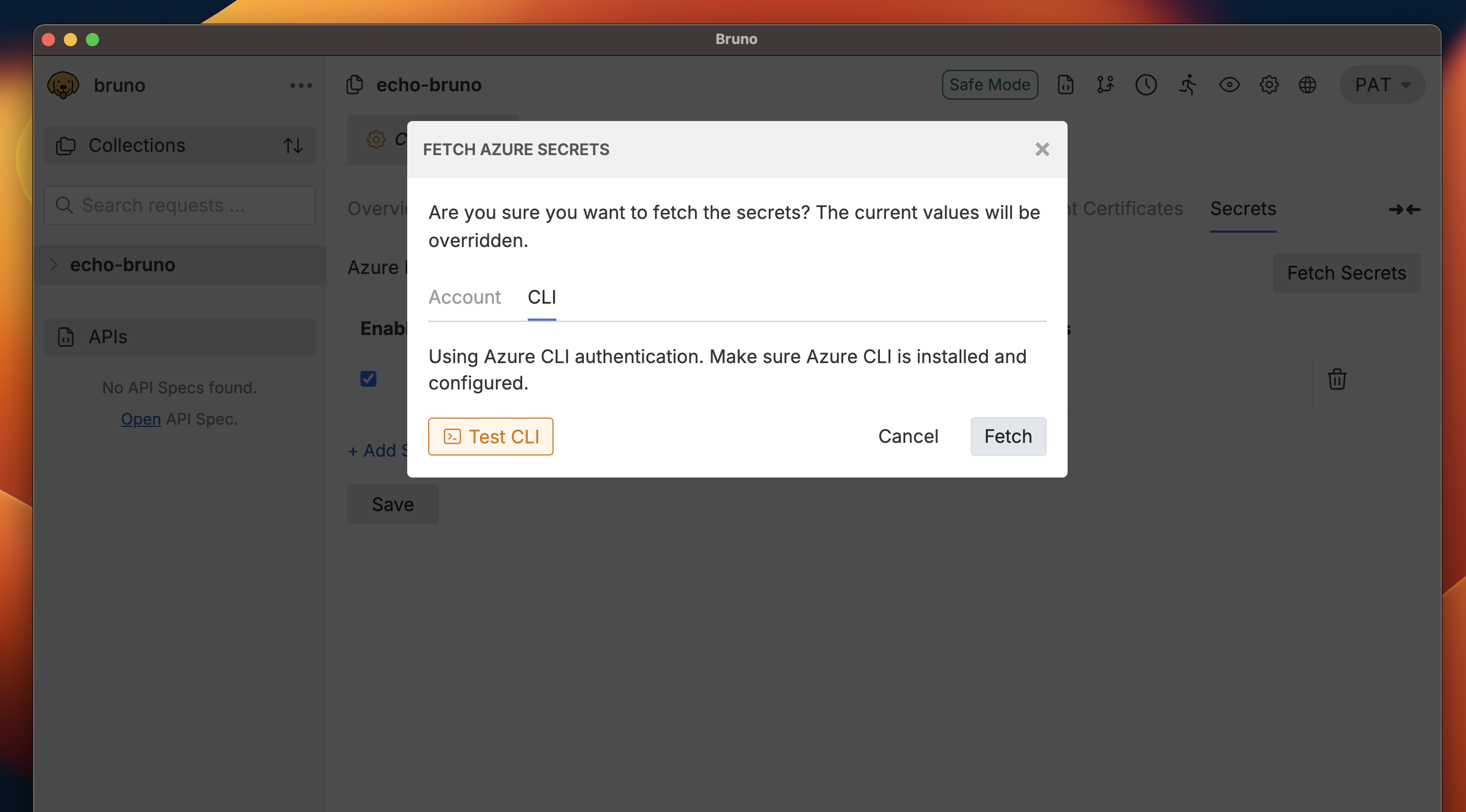
- Click Fetch Secrets to retrieve secrets from Azure Key Vault
- In the FETCH AZURE SECRETS dialog:
- Select the CLI tab
- Click Test CLI to verify authentication
- Click Fetch to retrieve secrets
- If successful, you’ll see secrets fetched in the Secrets tab.